


The versatility of the Word application is known to many. We can learn how to edit meaningful documents simply and quickly. We can learn how to format the document spectacularly. However, few people know that there are many more options available to us. We have selected a bunch of them.
Why is it good for me to know what's going on behind the scenes?
There are a lot of cool things hidden from view in Word. One of the most overlooked parts of Office applications is the Info panel in the File menu . It contains a number of features that can add a lot of extras to your document management. For example, it seems pointless to give a title to a document, since it has a filename and the title is already at the beginning of the document. Why does it matter who the author is? Why should it be categorized at all? Then I put it in the appropriate folder, and that's it.
What are the most common problems with files?
When creating a document, we rarely think about the fact that the life of the document is not limited to its production and subsequent sending or printing. We store files, often giving rise to another modified version, then another... It often happens that we copy them to various portable devices, then they disappear somewhere, then reappear. And there comes a moment when we have no idea which file was the final one among many similar ones, which was just a draft, and which was a working copy.
What can the address be used for?
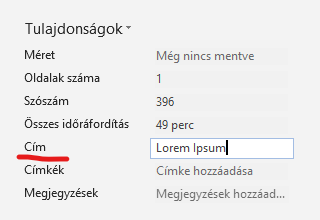
Setting the title is easy. You can do it in the Document Properties section of the File menu , and it doesn't take more than a minute. Once you do this, you can place it at the top of every page in the header with a simple paste, and if you want to change it, you can simply edit it. This title can be different from the file name and/or the title in the document, even if it is formatted with the Title style.
What is the label good for?
Labels are one of the most useful tools for organizing files . Let's go back for a moment to the problem of having countless versions of a given Word document, all with similar names. For a while, we can keep track of which was the template, which was the submittable, and which was the final one, but there may come a point when we have no idea.
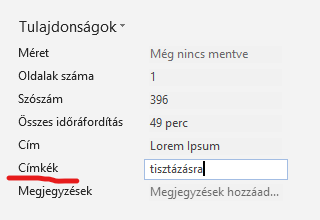
And then we can start opening files and looking through their contents from beginning to end. There is an option to enter Tags in the Properties of the Info page in the File menu . The tag can be displayed in the file manager and can also be used as a filter.

Where can I see where automatic saves go?
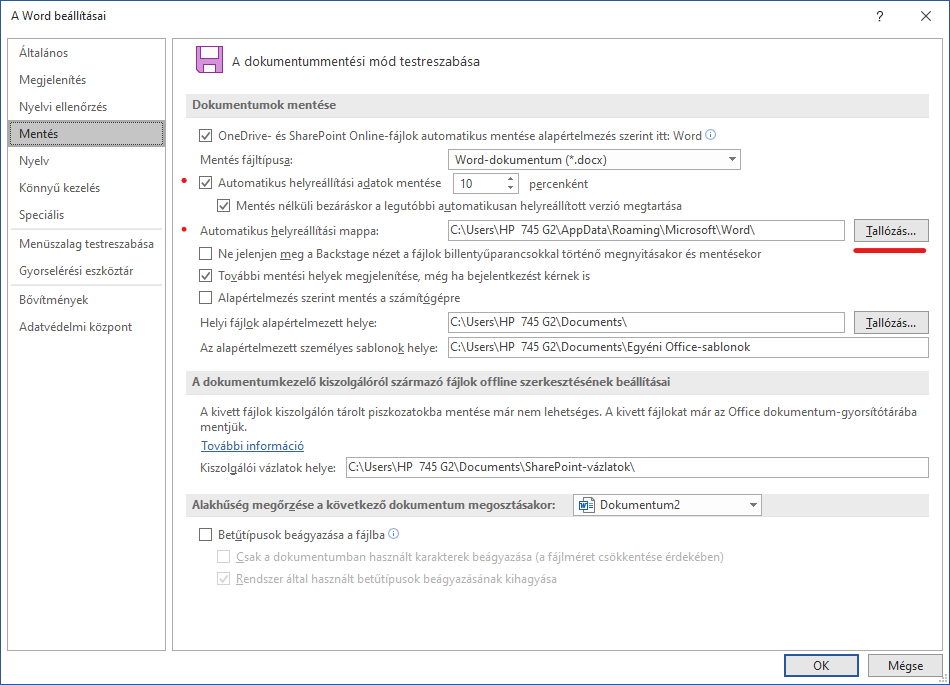
In the File menu, among many other things, we find Settings , and within it, Save . It's worth checking out the other pages within Settings at least once, but without a doubt, autosave is one of the most useful features. Here we find the reassuring status that autosave runs every 10 minutes on every machine , and here we can also see the (not exactly short) path where the files saved by autosave are saved.
Tip: Create C:a biztonsagifolder on your drive, and a folder inside that word, and then specify the C:\biztonsagi\wordpath to where you want to save it. This will make it much easier to find when you need it.
Where do I set the default font?
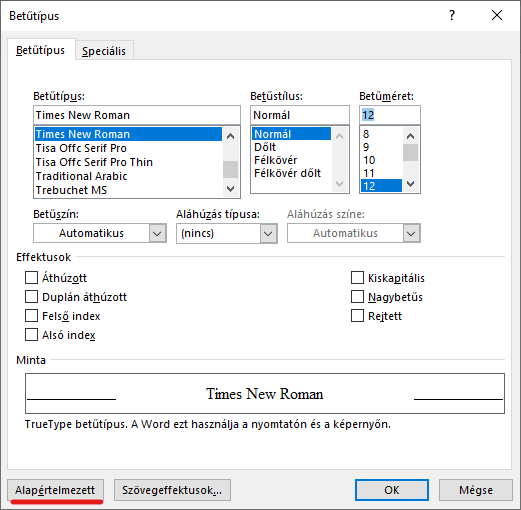
You can find many useful settings under Preferences in the File menu, but there are a few exceptions. One such setting is the default font. Setting this is easier than you might think:
click anywhere in the text, then in the Additional Font Settings window, select a font you like and press the "Default" command.
Can I create sample texts?
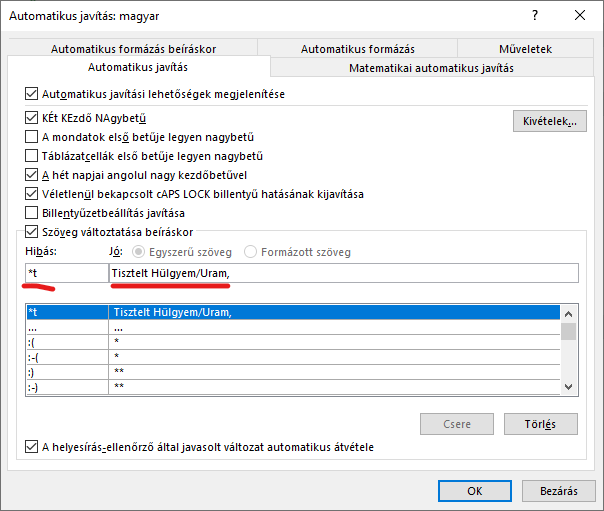
Not primarily because of laziness, but people often wonder how to save money on the keyboard . All MS Office programs have an autocorrect setting option. The point of this is that there are words that many people misspell, and the incorrect and correct versions are stored in a collection. Just one example: post office – post office...
This function can be used to create ready-made texts and assign them a short “code”. In practice, this looks like the “code” is the incorrect text, which when entered, the program automatically inserts the correct , i.e. our ready-made text.
We wish everyone effective time-saving with the help of our tips. And if you are curious about other useful and hidden features of Word, we will tell you everything in our one-day trainings.