



Most people inevitably encounter the problem of receiving a report or data set in a format that is not suitable for proper processing. This is where the frustrating process of having to correct or delete characters one by one comes in, which is not only time-consuming but also prone to errors. Below we present 5 Excel functions that will help you clean up the data you receive quickly and easily.
Text to columns
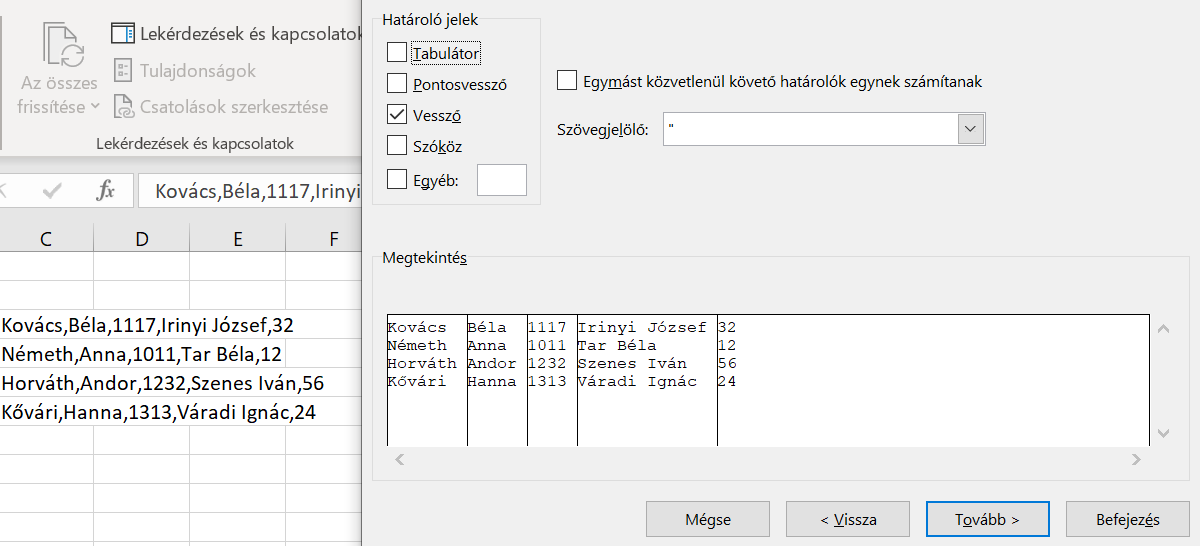
The Columns from Text function allows you to create multiple columns from a single column according to a separation rule. This separation rule can be a separator character – such as a comma, semicolon, or hyphen – or you can split the original column into columns by splitting it after a fixed number of characters.
Lightning filling
Flash fill allows you to perform the same transformation on all elements in a column, and it will recognize exactly what that transformation is and offer you the option to perform it on all elements in the column. The flash fill option is offered automatically by Excel, but if you want to start the flash fill yourself, you can do so at any time by pressing the Ctrl+E key combination.

Search and replace
The replace function allows you to correct every element in a column or table with just a few clicks. For example, if a column contains all email domain names, you can quickly correct all domain names by selecting the column and pressing the Ctrl+H key. All you have to do is enter the wrong domain name in the search text field, enter the correct domain name in the replace with field, and then press the replace all button.

SMALL CASE, CAPITAL CASE
Sometimes a data set contains incorrect case. It can be a pain to change the case of each character in a column. Fortunately, Excel provides two functions that can convert all characters in a column to either lowercase or uppercase. All you have to do is tell the LOWER or UPPERCASE function which cell value you want to change.
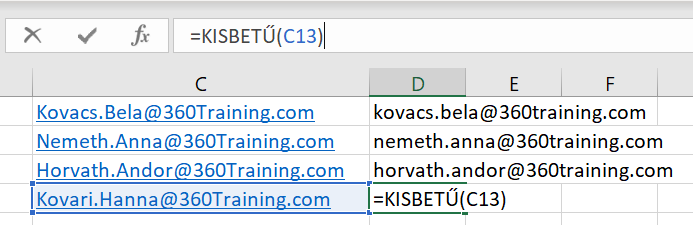
Double click in the right place
When you're working with a 10,625-row Excel spreadsheet and want to drag a formula down to every element in a column, dragging it down can be a bit of a chore. Fortunately, there's a way to make this easier: type the formula in the first cell, select the cell, and double-click on its lower-right corner. Excel will then automatically drag it down to the full depth of the spreadsheet.

In addition to the above, Excel contains many other functions that can help us adapt our data to the form that suits us, so anyone who works with this program all day long should learn more about the tool's capabilities. It is also worth visiting the official Excel blog , as new features are constantly being added.